Showing posts with label Tips. Show all posts

Wednesday

Most Famous Breaches of Email Security

It seems that nobody is safe these days when it comes to the internet. After a number of hacks taken out on social networking sites like Twitter and multiple user outlets such Sony’s Playstation network, it would seem that internet trolls are just one step closer to getting into our personal email accounts. But it’s not just us that are at risk – celebrities, businesses, public services and government organisations are the prime target. I mean, who wouldn’t want to know what gossip-worthy gems lurk inside Britney Spears’ mail Inbox? Unfortunately, it is extremely unnerving to know that there’s a chance our medical records and bank details might be viewable to the public if certain email accounts were hacked, not to mention national security.

Web companies such as http://www.sslpost.com/ are doing their very best to ensure that our email accounts are well protected with encryption methods and secure delivery services , especially for businesses who are constantly sharing contact numbers and financial info inside messages. Unfortunately sometimes one little hacker can slip through the net - quite literally – if we’re not careful.

Here we look at some of the most famous breaches of email security.

Gone Phishing

One of the most well-known ways that hackers managed to compromise email accounts in recent years has been the conception of the Phishing site. Whilst nowadays, most email providers offer software to spot these menaces, they can occasionally be so convincing that we fall victim.

Basically, how phishing works is that a website or email appears legitimate but is actually an imitation created by the hacker to resemble the official website. An email will usually require you to click a link where you’ll be asked to re-type in your email password or enter personal details. This will then be intercepted or sent to the hacker who will use your information for doing bad, bad things. Hundreds were lured in by these scams after they made their appearance in the mid- 2000’s and caused a whole new revolution in the way email providers handled their security.

Sarah Palin

American politician and Republican Sarah Palin caused quite a stir when she ran for Vice President of the United States in 2008. During the Presidential Election, then-teenager David Kernell hacked into the private Yahoo! account belonging to Palin and then posted her details on image board site 4Chan. However, the way he did it could not have been simpler. All he had to know was her email address, birthday and zip code.

By researching details about her life such as the high school she attended and the place she met her husband on Google, Kernell was able to use the password retrieval function to answer her secret questions. Kernell was lateracquitted of his crimes after appearing in court but maintained that he never found anything of note except some boring ‘clerical emails’ from when she was a governor.

Gmail

Google is probably the most-used search engine in the world so you’d assume that having a Google mail or Gmail account would be as save as houses. Apparently not…

In June 2011 a huge hack into the Gmail accounts of senior government officials from the US, China and South Korea was exposed by an internet blogger.

The alleged ‘cover up’ had been reported by Mila Parkour, an IT worker based in Washington, DC. Unsurprisingly, this was explained to be another phishing scam where the login page of Gmail had been replicated almost perfectly. The difference this time was that important military and government personnel’s accounts had been compromised. In result, China was blamed for what was described as ‘purely political’ attack on Google who had previously clashed with the Chinese government over censorship issues.

Though there is no solid proof that China are solely responsible for the hacks, the origins traced to the Shandong province and the attack caused a panic among US officials who labelled it as an “act of war”.

As techies worry that the world may be drawn into a technical arms race for information, Gmail have attempted to warn all users about such scams by improving their security systems and posting a ‘spot the difference’ page to deter people from entering details into phishing sites.

Climategate

In 2009 a controversy surrounding The Climactic Research Unit at the University of East Anglia emerged when a server was hacked and thousands of emails and computer files were copied.

But why were CRU, of all organisations, targeted?

Anonymous sceptics believed that the documents which were exchanged by the scientists at CRU contained evidence that climate change was a hoax and a ‘scientific conspiracy’. Emails were said to withhold evidence of manipulated data and discussions between scientists in which they supressed the claims of their critics. Believed to be achieved by a hack into CRU’s back up mail server the emails were released as a smear campaign prior to the Copenhagen Summit on climate change in order to dissuade those attending the summit.

The incident was investigated extensively though to this day the hackers have never been caught and CRU have been forced to rebuild their reputation to sustain the message on climate change.

HBGary

Almost ironically, technology security company HBGary Federal suffered a hacking scandal in February 2011 when chief executive Aaron Barr claimed he was going to reveal names of the hacker group Anonymous. In response they gleefully hacked the HBGary Federal site and, according to Forbes magazine, stole 71,000 emails. The emails were posted online and exposed ‘dirty tricks’ offered to clients such as blackmailing, forged documents and other cyber-attacks showing a more sinister side to the HBGary organisation. Many clients distanced themselves from the company during the fallout whilst Barr and his family suffered anonymous threats. Barr was later forced to resign from his newly tainted company.

R-Pattz gets bitten by hackers

If you’re going to hack a few government officials you might as well go for the big daddy. Although playing a pasty, Nancy boy vampire in films and complaining about how you’re constantly stalked by girls is not a justification for an unfortunate invasion of privacy, it didn’t stop us from cracking a tiny smirk when actor and British heartthrob Robert Pattison’s email account was hacked by a fan in March. Following Pattison’s admission of a 17 year old girl infiltrating his account, Famous magazine then twisted the tale in a deceiving headline that implied Rob’s emails were rather incriminating. Unfortunately, all it revealed was that the former Harry Potter star is just as boring as we expected and that some teenagers really are a tad crazy.

Share/Bookmark

Thursday

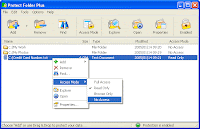
Password Protect Folders in XP

Protect Folders
Do you share a computer with other users and want some extra security on your folders? There are two ways to password protect a folder built into Windows XP (for other Windows flavors, there are some freeware/shareware programs out there).

#1: If you have a log in password for your account, this can be used to protect folders from other users. Your hard drive must be formatted using NTFS (which it probably is unless you're dual booting with another operating system). Here's what to do...

Right-click the folder that you want to make private and choose "Properties" (or Alt+Double-click). Go to the "Sharing" tab and check the "Make this folder private" box.


Click Apply . If you do not have a password on your account, a box will pop up asking if you want to assign a password. This must be done if you want to make the folder private, so click Yes . You will need to use your password to log on to your computer from then on.

Type in a password then confirm it. Click the "Create Password" button then close the Password window.

Click OK in the Properties dialog box.

Now anyone else logged on to your computer can't access that file without knowing your password.

#2: If the Folder is Zipped you can give it a unique password.

Just double-click the zipped folder. In the top menu select File then click "Add a Password".


Type a password into the Password box. Then again in the "Confirm Password" box.


Now, you are the only person who can access files in this folder. The folder can be opened allowing the files to be seen, but you are the only one who can access them.

Share/Bookmark

Wednesday

Google Knol

Google Knol
According to Google, a knol is "a unit of knowledge, an authoritative article about a specific topic." The Google Knol service just reached 100,000 articles and it's finally being recognized as a potential competitor to Wikipedia. If you'd like to learn more, here’s how you can get started reading and contributing to Google Knol!

Reading It

Reading a Knol is simple! All you have to do is point your Web browser to http://knol.google.com and search for whatever you'd like to read about. The search is powered by Google, so you know it’s good!


As you can see, there are a lot of Knols (774) about Barack Obama, ranging from his foreign policies to buying cheap Obama memorabilia. Knols can be written by anyone, so the content varies quite a bit.

Writing Your Own Knol

To write a Knol of your own, go to http://knol.google.com again and click on Write a Knol.


Sign in to your Google account (if you don't have one, you'll need to sign up first).


Click on the Write a Knol button again. You’ll then see the basic structure for writing a Knol. You can choose your license as well, which I think is great! Pick from three Creative Commons licenses (saying that people can use it, but with conditions) or All Rights Reserved (only under limited circumstances can people use it).


Happy Knolling, my friends!


Share/Bookmark

Pictures From Phone to Computer

Pictures from Handphone
We all know that cell phones are one of today's big crazes. An even bigger one is camera cell phones. Before we know it, all cell phones will probably have camera abilities, because the world today likes to see real images rather than just words. So, it may be a good idea to know what you can do with the pictures you take on your phone after the shooting is done.


Picture Messaging


A common way that people transfer photos from their cell phones to their computers (that doesn't really have any additional cost from your regular monthly bill) is picture messaging. It works pretty much the same as text messaging; you just have to have text messaging enabled on your cell phone. If you don't, this method will not work.

Note: Expect this method to be a little different for various phone models, but the following directions are pretty basic and similar for all phones.

If you would like to send a picture to another person's cell phone or if you want to e-mail a picture to a friend or even to yourself, you just need to open your phone and go to the Menu. Find your phone's Media Gallery and then choose Pictures. At this point, you can pick the photo you'd like to send. Once you have it chosen, go to Options and choose Send in Message (like you're sending a text message). This is where you choose to send it to one of the Contacts listed in your phone or if you want to e-mail it to someone or yourself. Pick the person you're sending it to and push the OK button and then Send.

You can also send text with the picture if you want to do that. If you end up e-mailing the picture to someone, you will just have to type in their e-mail address and they will get it in their Inbox. You just need to make sure the person you're sending the picture to has picture capabilities too.

Data Cable

Another way you can transfer photos to other people is to put them directly onto your computer, so you can e-mail them to your friends or save them to a disk or a CD. So, to do that, you have to have some sort of a USB data connection kit, which comes with the cable cord that plugs your phone into your computer's USB port and the software that will help you in transferring the pictures from your phone. You usually have to purchase these kits separate from your phone. The store where you buy your phone should have them available and they will be able to tell you which one will work with your type of phone.

Once you have your phone and computer connected, you can start transferring the pictures. Again, keep in mind that these kits are phone specific, so you need to make sure that you get one that will be compatible with your phone model.

Bluetooth

Another way to handle the pictures on your cell phone that is becoming more popular every day is a wireless technology called Bluetooth. Bluetooth works with short-range wireless technologies that allow you to easily send photos from your phone to a laptop or desktop computer. The computer you are sending them to just has to be equipped to accept the pictures.

The most difficult (but it can sometimes be fairly easy) part about Bluetooth is matching the phone to the computer, so they are both compatible with each other. But, once that it is done, sending the images couldn't be easier.

As long as your phone has the Bluetooth software on it, you can send the images without any extra charges billed to you. You can also send photos to other Bluetooth users' phones without any wires or additional charges. This seems to be the most versatile way to go if you're looking to maybe spend a little more money up front for the Bluetooth works, but it will save you money in the long run when you don't have to pay any extra charges when sending your pictures back and forth.

E-mail

Another way for you to send pictures between your friends and family is to e-mail them. Your cell phone has to have e-mail capabilities for this to work, but a lot of the phones these days come with that ability. You can e-mail them to other people or, as mentioned above, to yourself. You just have to type the e-mail address in the To: field just like you would if you were using Outlook Express and it will be sent.

If you see something while you're out and about that you just have to take a picture of, you can snap the photo on your phone, send yourself a quick e-mail and when you get home, the picture will be on your computer waiting for you. You can then send it off to other people or do something like set it as your desktop wallpaper.

Removable Memory Cards

Another new technology that is presenting itself with camera phones is an external memory card for your phone. The phone just comes with a slot for the card and you can transfer the shots to your computer in a snap. You will need to purchase an external memory card reader so it will all work, but it's one of the easiest ways to go if you takes several pictures with your cell phone.

When you have the card reader installed, you just remove the memory card from your phone, insert it into the reader and your computer will recognize it as another drive. You can then drag and drop the photos wherever you want them to go, e-mail them to others, etc. The options are pretty endless with this choice. You can then get rid of the existing pictures on your phone (since they're on your computer and not lost) and go out and take more. It's that easy!

Just one more reminder: all of these applications work differently with different phones, so make sure you refer to your phone's manual before doing anything you're not sure of. But, all in all, this is all really cool when you think about it. Who would have thought we could do so much with a little phone? Technology is just out of this world!

Share/Bookmark

Monday

Opera 9.6: Speed Dial

Opera 9.6
Here's another dose of the Opera Web browser for you! If you didn't already know, the people over at Opera recently released the new Opera 9.6 and it's now available for download here. Opera claims to be the only browser that comes with everything you need to be productive, safe and speedy while online. Let’s take a quick look at the Speed Dial feature available in the new version. Here we go!

Speed Dial is a new method of quickly browsing to your favorite Web sites. When you hit the New Tab button, instead of the usual blank page, you'll see a 3 x 3 grid. The grid takes up the full screen and it's laid out in the fashion of a telephone dial with numbers from 1 to 9. Each number can be populated with a different URL, selected from either your existing favorites or entered manually. Now, I know you might be thinking that nine speed dials is not nearly enough. Well, lucky for you, there's an easy way to increase the number of speed dials. Let's check it out, shall we?!

1.) Open Opera and go to Help, About Opera. That will open a page that shows the version information, as well as, other useful information about Opera. Check the Paths section and copy the path for the Opera Directory.

2.) Close Opera and paste the path into the Run dialogue box. Hit OK and you'll then see the Opera profile directory.

3.) You’ll see the “speeddial.ini” file in the folder. Open the file in Notepad and add the following lines to the end of the file:

[Size]

Rows=4

Columns=5


In the above code, 4 and 5 are just examples. You can replace them with your desired numbers.

4.) Save the file and open Opera again. Now, you’ll be able to see more speed dials in Opera!


Share/Bookmark

Excel Cells to Word with Usable Results

Ms. Excel
Have you ever tried to copy and paste cells from MS Excel to MS Word?

What happened?

I bet you went to Excel, highlighted the cells, copied the cells, went to Word, pasted the cells and poof, there they were!

Sounds great, doesn't it?

Yes, and it can be, but if you're using Word and Excel 97, there are some slight problems.

You might notice that you can't seem to easily move the cells.

Oops! No handles to grab means no easy moving.

In addition, if you're looking to make the whole thing bigger, you're going to have to go through a bit more trouble. With no handles, there's no easy click and drag option to change the size.

One more thing: for those of you who like to embed the cells into your text with text wrapping, you're out of luck there too.

Now, if you're using a newer version of Excel and Word, things aren't as bad!

You can move the table using the four way arrow that appears in the upper left hand corner when you click on the cells. Plus, there's a resizing box in the lower right hand corner.

I even found that you can wrap text around them.

But I also found that the resizing wasn't what I had in mind.

When I used the resizing box, the whole thing got bigger, but it just didn't look "pleasing" to me. The text stayed the same small size and everything seemed spread apart.

That's not really the effect I was going for. When I resize, I want the whole thing to scale larger or smaller. I don't want to have to do a lot of reformatting to get the end result.

I'm a "grab the resize box, drag and drop" sort of girl. I have no patience for all the rest!

So, what's the solution?

I mean, I love to use Excel to create my tables and then take them to Word. (After all, it's already broken into a grid, so I don't have to draw one).

Well, one idea is to copy in Excel and then use the Edit menu (Home tab on the ribbon for 2007), Paste Special choice in Word.

In the Paste Special window, you should then select Microsoft Excel Worksheet Object as the type and click OK.

Voila! Your Excel data in Word is formatted in a way that allows for easy resizing and text wrapping.

I should also mention that the data can be edited from Word. Simply double click on the data and it will convert it to an Excel worksheet for editing.

It's just one more way to have the best of both worlds!

Share/Bookmark

Sunday

Computer Problems

Computer Problems
When your computer is creating mess for you and you can not find right solutions, you set out in search of experts to pull you out. And the first choice is always the manufacturer. Then, you notice that your warranty with the manufacturer has expired and your computer is no more eligible for free computer support or repair from them. In such case the best thing you can do is search for online computer help and support.

Outlined below are some tips you can follow to narrow down on the most appropriate computer support vendor who can offer you the best value for your money.

1. Always shop around before settling on any particular source: Shop for different support companies and go ahead with the one which has better array of support services along with appropriate charges. It is completely futile to pay a hefty amount of money for something which you will use just once or twice.

2. Get credentials from experienced people: Do not sign up for any software support services if you are facing problems with your computer hardware. At times, computer users get baffled among which services to choose from. If you are facing a software issue, it will be more advisable to contact hardware service companies instead of software solution providers.

3. Look out for trail support packs: See if any trail pack is available with any good computer support company. Also never compromise on the quality of support services. Do not end up paying too much for something which was least useful. Ensure about terms and conditions with the computer service provider.

4. Always give out minute details of your computer problems and never shy to ask your computer support technician anything you feel suspicious about. Do not let them experiment with your computer; it can lead to more loss than the actual problem Also, do not expect computer experts to guess everything happening on your PC.

5. Check for different packages on different websites if you are considering availing remote computer support online support. If you have been facing regular problems with your PC, it will be better to sign up with long term plans.

Daisy is a technical and security specialist associated with multiple tech firms including iYogi. iYogi is synergistic ally aligned to offer computer repair,computer support, microsoft support,hp support, dell support, pc repair, desktop support,PC help services ,tech support, online technical support, computer tech support to its clients in US, UK, Canada and Australia by Microsoft certified technician.

Always shop around before settling on any particular source: Shop for different computer support companies and go ahead with the one which has better array of support services along with appropriate charges. It is completely futile to pay a hefty amount of money for something which you will use just once or twice.

Get credentials from experienced people: Do not sign up for any software support services if you are facing problems with your computer hardware. At times, computer users get baffled among which services to choose from. If you are facing a software issue, it will be more advisable to contact hardware service companies instead of software solution providers.

Look out for trail support packs: See if any trail pack is available with any good computer repair and support company. Also never compromise on the quality of support services. Do not end up paying too much for something which was least useful. Ensure about terms and conditions with the computer service provider.

Share/Bookmark

Saturday

Speed Up Your Computer by Defrag and Deleting Temp Files

Computer Defrag
Computers are an amazing piece of technology that has completely changed the ways that we live. With computers, we can now do things that were once unthinkable.

We can order groceries from home, purchase airline tickets, interact with people, meet future spouses, play games, listen to music, watch movies, and a million other things.

Unfortunately, with ever evolving better technologies to enhance the computer experience, one must keep up with ever evolving computer technology.

Computers are something that can very easily be upgraded. RAM, Hard Drives, and other hardware pieces are fairly easy to remove and replace with updated technology. But why just settle for upgrades?

Computers are becoming so cheap that one can easily buy a brand new computer for sometimes cheaper than it would cost for an upgrade. A new computer will speed up just about every process and activity that you may do on a computer. Games will load and play faster, CDs and DVDs can be burned easily, Windows will load up applications quicker, etc.

If you don't want to buy a new computer, there are several options one can do to make their current computer faster. You can delete temp files to clean up hard drive space and then defrag your hard drive.

To delete temp files:

1. Open Internet Explorer and click on Tools
2. Click on Internet Options
3. On the General Tab, in the middle of the screen, click on Delete Files
4. You may also want to check the box "Delete all offline content"
5. Click on OK and wait for the hourglass icon to stop after it deletes the temporary internet files
6. You can now click on Delete Cookies and click OK to delete cookies that websites have placed on your hard drive.

To clear the Internet History in IE:

1. Open Internet Explorer and click on Tools
2. Click on Internet Options
3. On the General Tab, in the middle of the screen, click on Clear History
4. Click OK

To clean up other temporary files on your computer in Windows 98 or higher:

1. Click Start, Programs (or All Programs), Accessories, System Tools, Disk Cleanup
2. Choose the correct drive usually C:
3. Check the boxes in the list and delete the files

After this is done, if you'd like to defrag, you can do this:

1. Open My Computer.
2. Right-click the local disk volume that you want to defragment, and then click Properties.
3. On the Tools tab, click Defragment Now.
4. Click Defragment.

There are literally dozens of other ways to speed up your computer. But deleting temp files and defragging is one easy way to speed up your hard drive. If you want that doing these tricks doesn't really help, then you can always buy a new computer, for real cheap.

Another tip to speed up your computer, that does cost some money, is to run ScanDisk. This will find any problems with your hard drives and / or Windows and will help run you computer more smoothly.

1. Press the Start button.
2. Click My Computer.
3. Highlight the disk which you want to scan for bad sector on the list of Hard Disk Drives.
4. Open the File menu and select Properties
5. Select the Tools tab.
6. Click the Check Now button.

Share/Bookmark

Operating System on a USB Flash Drive

USB Flash Drive
Most of us may not be aware of the fact that you can get an operating system on your USB flash drive. It might surprise many. But, that's the truth. Firmwares available in our PCs allow booting to take place from these drives. In these circumstances, you can easily launch operating systems from a bootable flash drive. These flash drives are commonly referred to as Live USB. Generally, Linux operating systems are available through this method. However, there are some versions of flash drives offering Ms. Windows operating systems.

You can use Live USB's for special tasks like installing operating systems across a network or for loading minimal kernel for embedded operations. You can have Windows XP installed on a drive through a properly configured Windows USB flash drive. If there is extra space in the drive, you can even install software in it. But for all this, a large disk is required. The final result will be a portable version of an operating system that can be operated upon during emergencies.

Linux operating systems are available in these Live USB's. The functionality and usage capabilities of these Live USB's are comparable to those with live CD's. You can perform many tasks with these live USB's like distributing and recovering various data. On few counts, live USB's are different from live CD's.

For example, while retrieving data from CD's is almost impossible as they are permanently written, live USB's allow data to be retrieved and modified as per the need of the user. Hence, these drives can be effectively used for personal storage purposes. All the personal applications and configurations can be carried out with these Live USB's. What's more, they can be employed for a single system that is intended to be used by multiple users over a network.

Just like any another storage devices, Live USB's have their own set of advantages and disadvantages. Firstly, Live USB's provide extra bit of privacy. This is possible because, Live USB's can be carried with the user wherever he/she goes and the data stored in the device is in a safe location. There are few drawbacks associated with these devices as well. As live USB's are small in size, they can get lost or misplaced. Retrieving them could then be an impossible task. Small size of these drives also means encryption and making backups that much more important and a bit tricky.

USB drives have a faster seek time when compared to optical media and hard drives. This is so because they don't have any movable parts in them. This could also mean programs can start faster in these drives than say a hard drive or a live CD.

In some USB devices, booting can take place slowly owing to low data transfer speeds. Also, booting from flash drives may not be supported by older computer as they don't have inbuilt BIOS. Using USB drives for booting an operating system might even reduce the life span of the drives.

Having an operating system traveling with you wherever you go is extremely useful for professionals who are always on the move. There are many online tutorials available in the internet which can guide you in the usage of these flash drives. Make sure you have one.

Share/Bookmark

Friday

Checking and Repairing Your Computer Registry

Checking Registry
Checking your computer registry, cleaning and repairing it are one of the essential maintenance functions of a computer. It is necessary to ensure that your computer is working correctly, that programs, which are no longer in existence, do not take up memory and your computer is not filled with items that are not necessary. These files can also create errors for you if there are too many of them in addition to freezing, slow load times and hanging programs.

There are several different ways to ensure that you do the best registry repair that you can do on your system. The first thing is to get a good registry cleaner there are a number of Windows XP registry repair applications available many of them free of charge or for a reduced rate. These registry cleaners take the work out of cleaning up your registry. Before these cleaners individuals had to be trained in order to be able to access the registry, identify which files were safe to remove or were attached to the program that they were deleting and remove them.

The best registry repair program, removes the registry files for programs which have been deleted and which are not being used by other applications. It is common for registry files to be shared between programs in order to save space. These shared files often should not be deleted since they are being used by other programs and removing them can actually cause problems with the programs that are sharing them.

When you look into Windows XP registry repair programs it is a good idea to check into the reviews on the program. Make sure that not only does it have good reviews from the computer experts but that it also has good reviews from users. You want to know what people like you think about the program before you go out and spend your money on it.

The second thing is that you are going to want to look for in the best registry repair program is the back up. You are going to want to ensure that you can back up your registry in case of an accidental deletion. This helps you to restore the files you need to restore without causing a problem for your computer. This is an essential function of the best Windows XP registry repair programs on the market.

There are a number of different programs on the market. Some of these programs are paid others freeware but the good ones all have a few things in common and all help to protect your computer from the issues that come from having a clogged registry. Without cleaning your registry you could deal with computer slow downs, hanging programs, increased load times and a number of errors that come from having invalid values in your registry. These invalid values can actually cause your computer applications even seemingly unrelated applications because of shared files. Having a good registry cleaning program is one of the essential maintenance programs for your computer.

Share/Bookmark

Thursday

Object Selection Made Easy in PowerPoint 2007

Power Point 2007
If you're anything like me, your MS PowerPoint slides are sometimes loaded with different items, especially when you start layering objects.

That can make for some very "slick" presentations, but it can also cause some major headaches when it comes time to do your editing.


There's always one thing in front of another and you're constantly trying to select one thing, but getting another.

If you're frustrated with that situation and you have PowerPoint 2007, this just may be your lucky day!

In PowerPoint 2007, you now have a Selection and Visibility Pane that can completely eliminate your editing blues.

The added feature allows you to select items from a list instead of on the slide, rename objects (allowing for them to have meaningful names), hide an object without actually deleting it and to move objects forward and backward through the layers.

To get to the Selection and Visibility Pane, you need to start under the Home tab on the ribbon, Editing section (far right), Select button, Selection Pane choice.


When the pane opens, you'll find a list of all the objects on the currently selected slide.


To select an object on the slide, simply select it from the list. With it selected, you can easily edit, reposition, etc.

As you can see, the names aren't all that meaningful, so if you have a long list, you may want to consider naming at least some of them something useful.

You can rename any item by double clicking on it. That will place a cursor in the name, allowing you to edit it as you please.

Now, let's talk about the eye icon to the right of the object name. That icon indicates the object should be shown on the slide.

If you click on the eye icon, it will disappear and so will the object on the slide. (In my example above, Bevel 94 is currently hidden and the rest are visible).

The cool part is all you've done is hide the object. It's not deleted, it's just hidden.

Displaying the object again is as simple as clicking on the empty icon.

Finally, I'd like to point out the two arrow buttons at the bottom of the Selection and Visibility Pane.


With an object selected, clicking on either button will move the object either forward or backward through the layers.

While I can't say I would need this one for every presentation I create, I can say it's a definite "must have" for many of them!

Share/Bookmark

Monday

Windows XP Shutdown Problem

Shutdown Problem
The root of a Windows XP shutdown problem can be traced to several issues. Windows as an operating system has been stable at best but is known to have many problems within its shell. In fact, Windows XP is built on the kernels and core of many of the previous versions of Windows, so the problems that may show up would have shown a similar pattern in older, more antiquated versions of Windows.

One of the possible problems that can occur is a damaged exit sound file. If you had selected a specific wave file to be played when Windows shutdown to replace the stock sounds (that you didn't like), then the problem might lay in the fact that the wave file is either corrupt or has a bad file root directory. If Windows cannot play the file or cannot find the file in the first place, then it might hang and refuse to shut down as it tried to resolve the issue. Another problem could surface when Windows was just freshly installed and there was a problem in the initial configuration. If your Windows was recently installed or there was a problem in the install process, then there might be a hiccup in the shutdown process.

Some technicians actually have identified the problem as starting from either a problem with hardware devices or the problem with a recent hardware install. Bad, incompatible device drivers and hardware conflicts are just some of the possible problems that can cause the computer to hang when you start to initiate the shut down on process. When you try to troubleshoot the problem of Windows shutdown, make sure you have initial fail safes that Windows has installed turned off. This is because the operating system has a tendency to restart itself when it sees an error in the shut down process. A good way to troubleshoot this problem would be to log onto Windows in 'safe' mode and see if there are any hardware device driver conflicts that you can resolve. If you do see yellow or red exclamation marks in your Device Manager profiles, then either try to reload the device driver or download a later version.

Check your USB connections, especially with device attached to your mainframe via the USB ports. Sometimes when there are too many devices plugged into the motherboard, there might be an overload in the end of the shutdown problem, which would trigger the motherboard's fail safe, which would be to restart the computer. Another popular way to find out the root cause of this mishap is to get a registry cleaner and clean out the registry. Sometimes, bad command lines or orphan keys in the registry can cause Windows to lock and restart itself, or even hang. A good registry cleaner can sniff out these problems and ensure that it does not happen anymore.

So you see, resolving a windows XP shutdown problem is not at all that difficult. If you have a basic understanding on how to use your computer and how it operates, you should be able to resolve a Windows XP shutdown problem without having to engage the services of a professional computer technician.

Share/Bookmark

Sunday

Shutdown Shortcut

Shutdown
Do you ever get tired of the repetitive process of shutting down your computer? You know, you have to go to your Start menu and then select Turn Off or Shut Down, whichever your computer has. Then you have to wait for it to actually shut down just to make sure it did it properly. Well, how would you like to bypass all of that and make the process a little easier?

You can do so by creating a shutdown shortcut for your computer. This shortcut will just be like another icon either on your desktop or in your quick launch area. To create one, right click anywhere on your desktop and go to New, Shortcut. A wizard will then pop up and walk you through the steps. In the "Type the location of the item:" box, enter this code: %windir%\System32\shutdown.exe -s

Now, the s stands for shutdown. If you use this option, your computer will give you a brief waiting time before it actually shuts down. You can also choose to force running applications to stop (f) or choose to have no wait time before your PC turns completely off (t xx). So, if you would like to have both of those along with your command, enter this code instead: %windir%\System32\shutdown.exe -s -f -t 00. Your computer will then shut down instantly.

Once you have the one you want, click Next. You can then pick a name for your shortcut. I just named mine "Shut Down," but you can use whatever you want. When done, click Finish and the new icon will appear on your desktop. You can add it to your quick launch area now as well if you want. When you're ready to shut down your computer, double click this new icon and your computer will turn off. Cool, huh?! And the best part is, it's all done with one quick step!

Share/Bookmark

Troubleshooting Runtime Error 380

Runtime Error
Runtime error 380 is more commonly characterised by a message that will display an 'invalid property value' dialogue on your computer. Runtime errors are in essence, problems Windows encountered when trying to link the chain of instructions that allow for the successful execution of a program when loaded. Programmers who designed programs will often encounter instances in various different situations where files are missing and commands are not followed to the T. While they will try their best to control these problems and print out an almost perfect piece of published software, they can never compensate for the literally millions of hardware and software configurations out in the wild world of computing.

Runtime Error 380 is simply a code that tells you a certain link in the chain is damaged or corrupted, unable to complete the commands that would allow whatever it is you are trying to do to load. In this case, it is usually a problem with root names and corruptions/problems within the Visual Basics directory. Technophiles might be able to get around the problem by locking in on the program that has the error and repairing the damage (which sometimes just needs either renaming of certain files and command lines/directories). Sometimes, error 380 also could mean that a program is running with pre conceptions of older versions of .OCX files within the Visual Basics Library - and your computer just happens to be running a much later version.

An update either way will help you to resolve this situation. OR the cause might be an outdated .DLL file (or missing) within Microsoft Visual Basic 4.0 - 5.0 Professional/Enterprise editions. As you can see, the root causes of the 380 are quite varied and for the casual user, this will be more than just a mere inconvenience. A quick look online will reveal even more possibilities, so as I write this, I realise as well that the problems listed here could be just the tip of the ice berg. Instead of instructing you on how to solve it with specific details, I will advise all who come across this problem to first look at the registry. Now, if you have no idea about how the registry works, then I advise you to not go in unschooled and try to modify the keys and command lines within its matrix.

Always, always use a registry cleaner that has been designed to rifle through the information with its delicate tools and clean any problems or bad data within the registry. Most of the time, runtime errors like this one is due to null values, orphan data keys and bad program command lines within the registry, either caused by time/use and attacks of intrusive and malicious software. Because Windows depends on the registry to tell it what to do, you need to clean out your registry to nullify problems like runtime error 380. Not only will it go away, but you will find yourself with a faster PC then what you started with, and that is good value.

Share/Bookmark

Friday

Find Competitors by Using a Keyword Spy Tool

Keyword Spy
Nowadays regarding auction sites eBay is one of the largest on the Internet and the 5,000,000 members prove its popularity and rank against all the other auctioneer web sites out there. I imagine most everyone has either sold an item on eBay or purchased something at one point or another in their lives. But besides actually marketing and buying on eBay once in awhile, there really are individuals that actually make money from there household by operating on eBay and making money by doing so.

These people have online home businesses that they utilize eBay for a full-time income. These people sell particulars normally at wholesale costs in large quantities and spread them out over eBay allowing people to "scoop up" those products. In most cases you will find more than one item for sale by the same individual people also are known to find sites that provide drop shippers and profit, some people actually attain really good money on eBay.

Another thing I have seen done is an eBay affiliate site, which allows these members to make a website of their own, and link in products from other users. When someone goes to that affiliate site, like all other affiliate sites, and they pay for an item, the affiliate receives a profit. This allows for the affiliate to make money but not have to physically deal with the products, shipping or handling (sending the product out).

I've tried selling on eBay a few times but, I was never really good at "merchandising" anything to start out with! If you are one of the many individuals that uses eBay as a means to make money online from home either full-time or part-time then you in all probability have used a tool of some variety on the website. Some instruments can be utilized for members that sell a lot of items on there and like to track everything, other instruments help you in posting items for sale, and finally there are other tools that will assist you in finding hot keywords and also discover your competitors keywords.

Obtaining hot keywords to employ on eBay is good for two main reasons I think. Firstly, it gives you a chance to incorporate those keywords into your item page and secondly it gives you a dependable idea of what merchandises are hot and which are not. For example, if you look for keywords and the phrase "footballs" shows 5 million leads then you should know not to sell footballs on eBay because everyone else is as well! Likewise you can use these tools as aforementioned to spy on your competitors keywords, this permits you to see precisely what keywords they are utilizing and will aid you in figuring out which ones you should apply to beat them out of the competition!

There are several different spy tools you can use in these instances and a few of the top rated ones are listed below along with a description about the product:

Keyword Spy can be defined as the search engine that can be utilized to access the keywords that are applied to provide you more of a benefit. You can understand the course of success which is leading to more earnings for your rivals and turn those ways towards your establishment for a profit as well. With the utilization of this product the turnover for your trade will grow rapidly.

PPC also known as pay per click is one of the fastest and smartest ways to make money online. It is an easy way to make income by launching campaigns and selling the product by practicing the correct keywords. The real problem rises up while trying to find those lucrative keywords. PPC Bully helps this purpose. It assists its users to do the research process and seek out those profitable campaigns they are looking for; which of their rivals and advertisers are campaigning and the products they are selling.

KeyCompete is an innovative tool which has been discovered for useful keywords. KeyCompete can be identified as the product which goes behind identifying rivals selecting the same keyword and find out those who are new in the marketplace and are struggling for adequate portions in the market!

All in all these are awesome tools to use if you want to go behind enemy walls, so to speak, and find out what your competitors are selling, how they are selling the items, and what keywords they are ultimately using in order for people to find the product. Most of us know that keywords are a major part of any business, and eBay is no different. If you know the keywords your rival is using and he is making potential money, then all you have to do is snoop around, find the phrases or keywords he is using, and start using them for your own business! Pretty easy stuff but incredibly ingenious!

Share/Bookmark

Wednesday

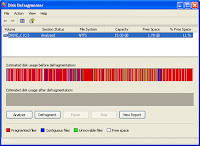
Make Your PC Faster With the Disk Defragmenter

The Windows Disk Defragmenter is a computer program that comes with Microsoft Windows. The purpose of the program is to increase access speed by rearranging files sorted on the hard disk to occupy contiguous storage locations. This process and technique is known as defragmenting. It is designed to ultimately optimize the time it takes to read and write files to and from the disk by minimizing head travel time and maximizing the transfer rate. Within Windows XP, the disk defragmenter is also used as a way to improve system startup times.

Starting at Windows 9x, the disk defragmentation tool was made available. Before that a third party had released a disk defragmenter for use with Windows 9x. A useful add on that has been made available in Windows Vista is that you can opt to run the disk defragmenter at certain repeated times. This way, you don't have to worry about remembering to run the disk defragmenter. You can simply set the times that you want it to run. In Windows Vista, you can also select which volumes are to be defragmented along with a simpler user interface.

The disk defragmenter is just one of the things in your arsenal to improve performance and make your PC faster at no expense to you. It is a useful and needed tool to have within your PC that can alleviate the problem of misplaced files. This way, your PC does not need to use extra time locating needed files to execute programs.

Disk defragmentation should be carried out every two weeks or so to maintain optimal system performance.

Share/Bookmark

Tuesday

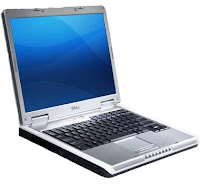
How to Choose a Laptop Computer

Laptop
Laptops are an increasingly popular product catering to professionals and casual users alike. However, it can be very difficult choosing which laptop is good for you and with so many specifications, as well as such a variety of choice, picking the right one can be a very difficult task. This short guide aims to help show you how to choose a laptop computer.

Think about your needs

Some people may think they need a laptop when really a desktop PC would do just as well. The benefit of buying a desktop over a laptop is price - desktops are far cheaper. However, if you need something portable then a laptop is the definitive solution.

It's important to take the time to work out what you really need to get from your laptop. There's no point in spending $2000 on a top of the range laptop when all you need to do is check emails on it.

If your needs are primarily checking emails and writing documents then a low cost laptop will be all you need. If you plan to watch movies and burn files to disk then a middle-range laptop would suit you better. Top of the range laptops are only really necessary for playing games with advanced graphics or for handling programs which need a lot of computer power such as graphical design packages.

Important features

The key features of a laptop are its battery life, processor speed, RAM memory, and hard drive storage capacity. A DVD player/burner is another popular feature, as well as the size and weight. Finally, in high end laptops graphics cards are also important. You may also want to take note of whether MS Office applications (or equivalent) are bundled with the computer or not if you intend to create written documents.

Buying the Laptop

It's really important to shop around when you look for a laptop. Deals vary greatly from place to place, but as a general rule the Internet is a great place to start your search.

Share/Bookmark

Monday

DLL Removal

DLL Removal
Dynamic Link Libraries, or DLL, were created by Microsoft to run much of the operating system. Some programs contain a lot of different modules and these are all linked together with DLLs, making them run smoothly. When a program is changed-that is, when you download a newer version of one-this means that the entire program doesn't have to be re-coded, just certain modules. Code can be re-used and the programs load more quickly and run faster as well as taking up less space on your hard drive. Since DLL files aren't loaded into random access memory (RAM), you have more memory at your disposal during your computer session.

But sometimes DLL is a distinct disadvantage and even dangerous to the health of your computer. You may only go to sites that you think are safe. You might use your computer only for research and emails. You do everything you can to keep your computer free of viruses but still something goes wrong sometimes. You may even have unwittingly downloaded a worm or virus from a pornography site that you've never heard of or thought about viewing! DLL files are the cause of these woes.

Browser plugins and browser hijackers are both made of DLL files that change your system to let others have access to your computer. Other DLL files aren't malicious but cause trouble because the user didn't properly remove a program or application they no longer wanted on their computer. DLLs that are unwittingly left behind when a program isn't removed correctly can interfere with other files and if the DLL is malicious it can recreated itself when you reboot the computer.

Are you looking for a great resource to use when applying preventative measures or restoring your computer back to health. You can find the right software programs to remove all those DLL files safely and permanently. That way you'll have everything you need in order to safely identify and remove DLL files that may be causing your computer to malfunction, slow down or have trouble navigating the internet.

It is especially important to have DLL protection if you use the internet often. As you surf, doing research or chatting with friends on what you think are safe websites, there are a lot of DLLs floating about that can attach themselves to your computer. Click on the advertisement of a product you're interested in? You may be downloaded a DLL from a pornography site; those types of sites do everything they can to expose themselves to you whether you want them to or not. When chatting with someone or sharing pictures or other files, you may be exposing yourself to a malicious DLL.

You need help avoiding all the trouble and expense of cleaning your computer and help preventing the problem in the first place. Your computer is an integral part of your personal and business life. It's up to you to protect it.

For more information on removing computer programs, visit http://www.dllremoval.com and http://www.hostingprivateserver.com

Share/Bookmark

Sunday

Tips to Properly Maintain Your Computer

Maintain Computer
In order for a computer to stay fast and reliable it must be well maintained. a computer can stay in good condition for many years if it is properly maintained. Here are ten tips on how to properly maintain your computer.

1. Be sure to have a good antivirus software installed in your computer and make sure that it is always updated. Viruses are among the main causes of computer failure. A complete virus scan should be performed regularly. avoid visiting websites that are suspected to be infested with malware. Do not open e-mails whose sender seemed shady, they could contain deadly malware that can put your system at risk.

2. Defragment your disk regularly. Defragmenting your disk once in every two or three months is a good way to ensure that your computer stays in top condition. Fragmentation happens when your computer's operating system fail to allocate enough contiguous space to store a complete file as a unit and instead places parts of it in gaps between other files. To illustrate this, let us compare it to a library where some users do not return the books to the proper place after they read them. The books in the library are arranged in a manner that would make it easy to locate any particularly book easily. If many books are no longer in their proper places it would take longer to find them. A fragmented file system is like a library where the books are not in their proper places.Think of defragmentation as a process of returning the books in their proper places so that it will be easier to find them using the card catalog. Windows XP and Vista have their own built in defragmenting software but they are very slow. There are good defragmentation software that can do the job in a fraction of the time it would take for the Windows default defragmenter to finish. I recommend Power Defragmenter and Contig.

3. Clean your Windows Registry regularly. When your Windows registry is clogged with bad keys and entries the performance of your computer will slow down. There manual cleaning of the registry is not advisable to non-experts. There are some good registry cleaners like RegVac and Registry Mechanic that are very easy and safe to use.

4. Regularly get updates for your operating system and other important software. Some softwares do not offer automatic updates so it is advisable to regularly check with their website and download and install updates manually.

5. Delete cookies.It is a good advice to periodically delete internet cookies to ensure that your internet runs at optimum speed. It is easy to delete cookies with Firefox, just go to Tools then click on Options. Select the "Privacy" tab then click the "Show cookies" button. Another box with the "remove cookies" button will pop up. Click on the "remove cookies" button. If you are using Internet Explorer 7, do this: exit Internet Explorer 7 then click start, then click run, then type inetcpl.cpl in the text field and click enter. The General tab will appear. Click "delete" under browsing history in the Internet Properties dialog box. The delete browsing history dialog box appears. Click delete cookies. Click "Yes".

6. Regularly run Windows XP's error-checking computer maintenance tool. It can be found by right-clicking the local disk icon in My Computer folder and selecting "Properties". Click the Tools menu and click on the Error-Checking button. In the dialog box that pops up you can choose to run the error checker and scan for errors, or also fix system errors as it finds them.

7. Uninstall programs that you do not use. These programs occupy space in your hard disk. the more space you have in your hard disk the faster your computer runs.

8. Always run your computer on a UPS. Sudden electric surges are harmful to your computer.

9. If you are familiar with the inside of the casing, physically clean your computer. Remove dust that gather in the casing with cloth or vacuum. Be careful not to damage any part though.

10. Give your computer a rest by turning it off every once in a while.

It is important to maintain your computer. If you follow the above tips you can be assured that your PC will last longer and will always have optimum performance.

Ms. Pinky is a Computer Support Specialist for more than 25 years. Has a Bachelor of Science Degree in Computer Engineering, MS Research work in Systems Engineering.

Get more free computer tips on her blog at http://www.computerhelpdeskandsupport.com/

See other link :
Maintain Your Computer


Share/Bookmark
Link To Your Site